Won't connect
- Is the companion running on your Mac (Deus XT in the menu bar)?Yes → go to 2.No → open Deus XT on your Mac, then try again.
- Is the cable plugged in?Yes → unlock the iPad and tap Trust if it asks. Try another USB-C port and a cable that carries data. Still nothing? Go to 4.No → go to 3.
- Are both devices on the same Wi-Fi, and not a guest network?Yes → check Local Network on both.No → join the same network, or plug in USB-C.
- Has this iPad been paired with this Mac?Yes → forget the device on both sides and pair again.No → pair with a matching code.
Still stuck: email support and tell us what the companion's Diagnostics panel says.

Wi-Fi feels laggy
- Does it feel fine over USB-C?Yes → the network is the bottleneck. Go to 2.No → see Pressure not working, or contact support.
- Is Smoothing on Lowest delay?Yes → try Automatic or Smoothest for steadier lines.No → go to 3.
- Is the Mac near the router, on a fast band?Yes → go to 4.No → move closer to the router or switch band.
- Are large downloads or video calls running?Yes → pause them, or use USB-C for the session.No → use USB-C for this setup and email support.
The Mac panel in the side rail shows how you are connected.
Accessibility
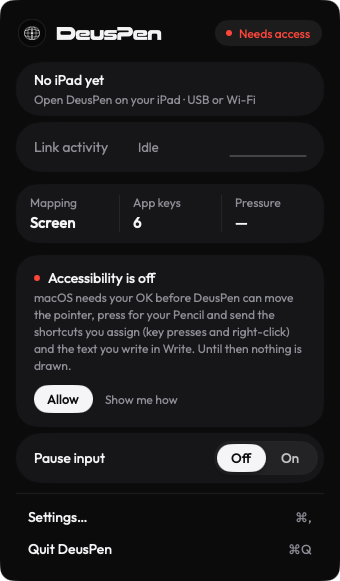
- Does the pointer move when you hover?Yes → Accessibility is fine. See Pressure not working.No → go to 2.
- Is Deus XT switched on in System Settings › Privacy & Security › Accessibility?Yes → go to 3.No → switch it on, then quit and reopen the companion.
- Did you update the companion recently?Yes → turn Deus XT off and on in the list, or remove it and add it again, then reopen.No → go to 4.
- Is Pause input on in the companion's menu bar panel?Yes → turn it off.No → contact support.
The companion shows Needs access while Accessibility is off.
Local Network
- Does the iPad find your Mac over Wi-Fi?Yes → Local Network is fine.No → go to 2.
- On the iPad: Settings › Privacy & Security › Local Network › Deus XT. Is it on?Yes → go to 3.No → turn it on and reopen Deus XT.
- On the Mac: is Local Network allowed for Deus XT in System Settings?Yes → go to 4.No → allow it, then reopen the companion.
- Is a VPN or firewall running on either device?Yes → pause it, or allow local traffic for Deus XT.No → plug in USB-C to pair, then try Wi-Fi again.
Pressure not working in an app
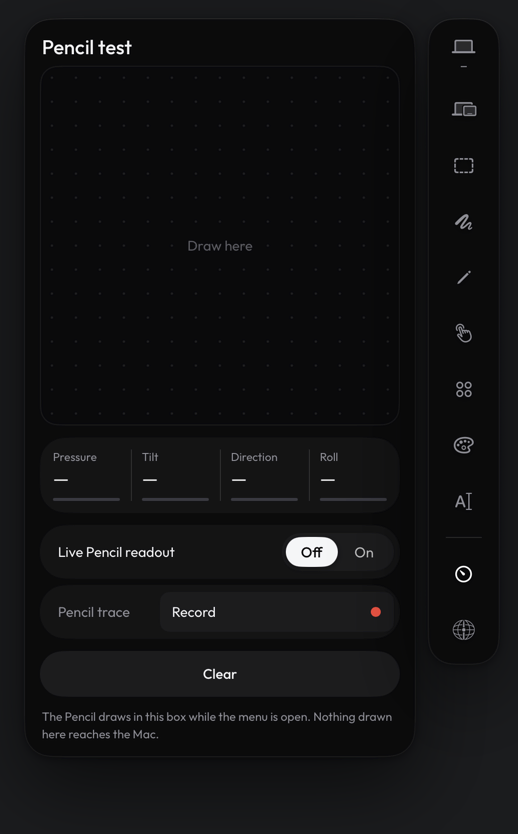
- Does the Pencil test on the iPad show pressure?Yes → the Pencil is fine. Go to 2.No → check the Pencil is paired with the iPad in iPadOS Settings.
- Does the pointer move on the Mac when you hover?Yes → input reaches your Mac. Go to 3.No → check the connection and Accessibility.
- Is the app on the Compatibility list?Yes → go to 4.No → it may not read tablet pressure. Tell us the app and version.
- Is pen pressure on for the brush (Photoshop: Brush Settings › Shape Dynamics › Size Jitter › Control: Pen Pressure)?Yes → check the pressure curve is not set too firm, then contact support.No → turn it on.
Related
Still stuck? Email support@deuspen.com with your iPad and computer models, the app you draw in, whether you were on the cable or Wi-Fi, and what you expected. The Diagnostics panel in the companion's Settings shows the connection state in words; tell us what it says.